
The next time you go to Denison’s Zoom web portal, you will see that Zoom has released a brand new web page layout that looks very similar to the Zoom Workplace desktop app. Don’t worry, you are in the right place and you can still get to everything you need. A guide will pop up with a few quick tips to introduce you to the “new Zoom web experience” and you can learn more in Zoom’s new web experience article. Please read on for highlights.
Remind Me – When/Why Would I Go to the Denison Zoom Web Portal?
Typical reasons individuals go to Denison’s Zoom web portal include:
- Editing your profile (for example, adding a picture or pronouns)
- Accessing recordings, transcripts, summaries, and reports
- Adjusting your settings (for example, granting someone else scheduling privilege, changing options like whether a waiting room is on by default, etc.)
- Scheduling webinars
How Do I Do Those Things Now?
The new “universal header” provides access to those options through the waffle icon (a cube with 9 blocks) or your profile icon (your picture or initials) on the far right side. When you click these icons and select an option, the selected section will open in a new browser tab. When you are done with it, close that browser tab to return to the main Zoom Portal page.
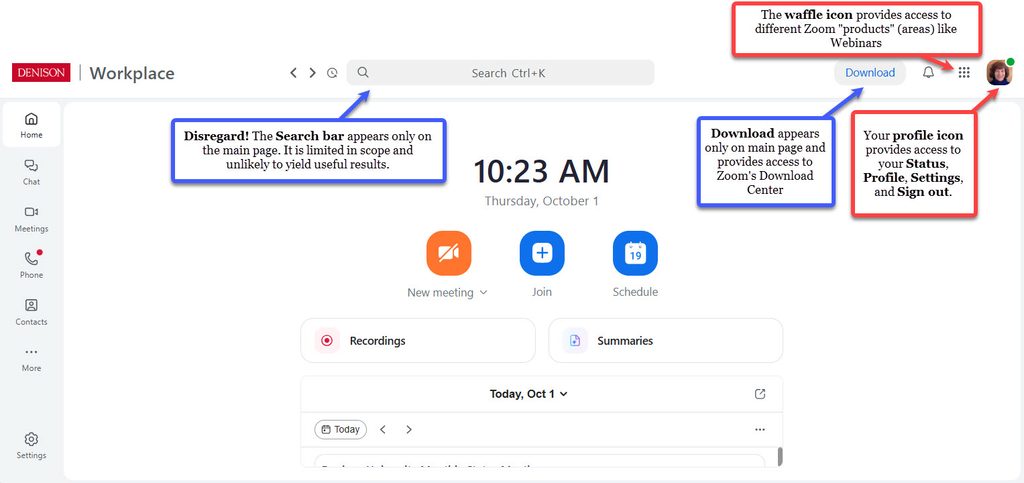
- To edit your profile: at the top right of the header, click your profile icon and select Profile. Your profile will appear with Edit / Add options on the far right of the sections.
- To access reports, recordings, transcripts, and summaries: at the top right of the header, click your profile icon and select Profile. A left menu panel will appear with options for those items. (Note: for recordings/transcripts and summaries, you can also click the Recordings or Summaries options on the main page which will take you to those items in the Zoom Hub, a new collection point for all Zoom files.)
- To adjust your settings: at the top right of the header, click your profile icon and select Settings. A left menu panel will appear with options for all the different settings areas.
- To schedule a webinar or access webinars you’ve already scheduled: click the waffle icon and select Webinars. The Webinars page will appear.
Questions?
Please contact the ITS Service Desk at 740-587-6395 or servicedesk@denison.edu. Updates to Denison’s Zoom documentation found on the MyDenison Zoom page in the Resources section will be coming soon.